Filtering and search
Help shoppers find the right product fast, with collection filters, sorting and search suggestions.
Collection and search filters
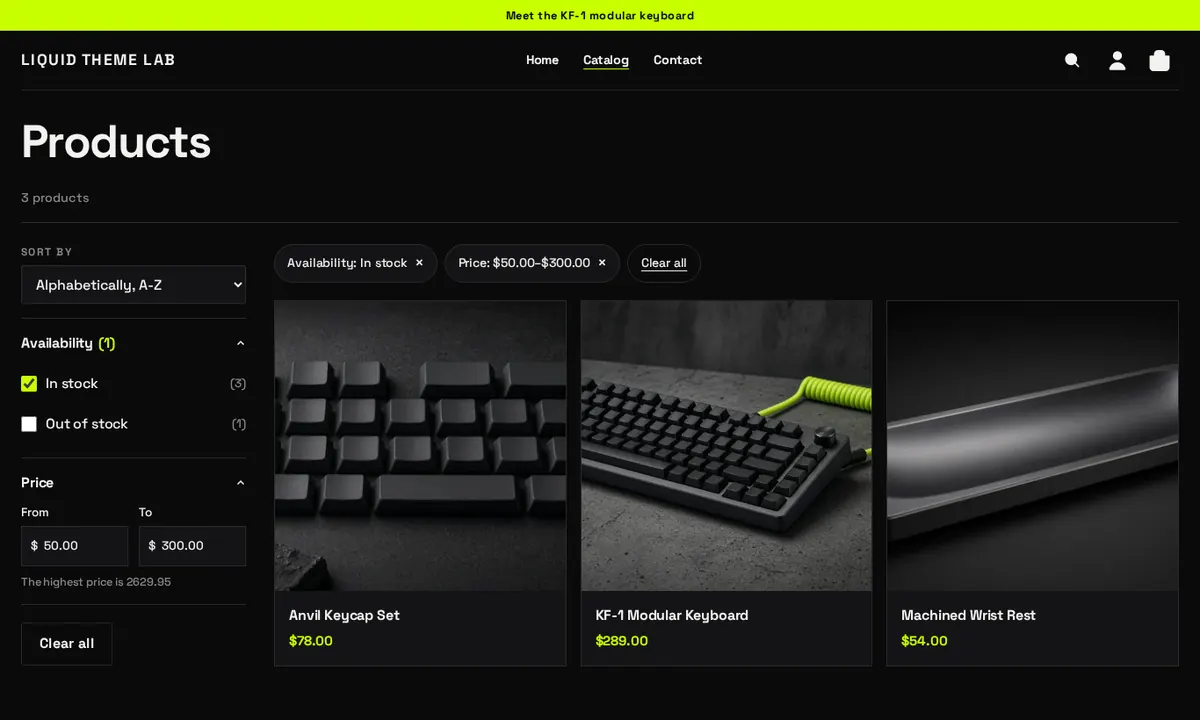
Plinth shows filters on collection pages and search results. On desktop they sit in a sidebar. On phones and tablets they open from a Filter and sort button.
Set up filters
- Install the free Shopify Search & Discovery app.
- In the app, open Filters and choose which filters to offer, such as availability, price, product type, vendor, tags, variant options (like size or color) or metafields.
- That’s it. Plinth shows them automatically, in the order you set in the app.
What shoppers get:
- Checkbox filters with a count of matching products. Options with no matches are greyed out.
- A price range with “from” and “to” boxes, showing the highest price in the collection.
- Color swatches for filters you set to the Swatch style in Search & Discovery.
- Active filter tags above the results. Each tag can be removed on its own, or shoppers can use Clear all.
Results update without reloading the page, and the address updates too, so the back button and shared links work. Filters also work without JavaScript, through an Apply button.
Sorting and products per page
In the theme editor, open a collection page and select the Collection products section (or Search results on the search page) to:
- turn filtering or sorting on or off, and
- set Products per page (8 to 48).
The default sort order for each collection is set in Products > Collections, on the collection’s Sort option.
Search suggestions (predictive search)
The search icon in the header opens a search box. As shoppers type, Plinth suggests matching products (with image and price), collections, pages and blog posts, plus a “Search for…” link to see all results.
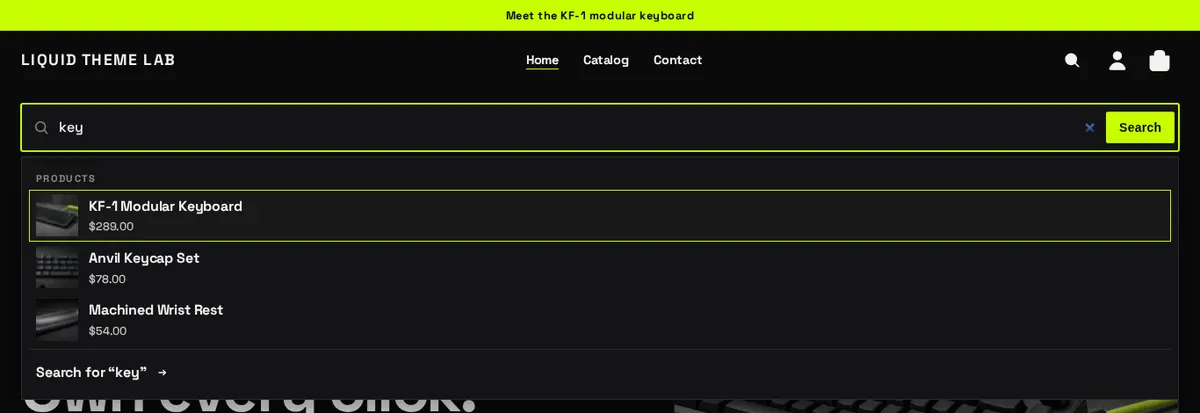
Suggestions work with the keyboard (arrow keys to move, Enter to open, Esc to close) and are announced to screen readers.
In the Header section you can turn off Show search entirely, or turn off Enable search suggestions to keep a plain search box.
The search page
The search results page lists matching products, with the same filters and sorting as collections, followed by matching pages and blog posts.
Improve your results: in Search & Discovery you can add synonyms (for example “sofa” and “couch”) and boost products to the top of results for specific searches.