Cart
Plinth keeps shoppers moving with a slide-out cart drawer, plus a full cart page.
Cart drawer
When a shopper adds a product, a cart drawer slides in from the side without leaving the page. It shows each item with its options, subscription plan and any discounts, the subtotal, and buttons to check out or keep shopping. Shoppers can remove items from the drawer, and change quantities on the full cart page.
The drawer works fully with a keyboard and screen readers. Focus moves into it when it opens, Esc closes it, and focus returns to where the shopper was.
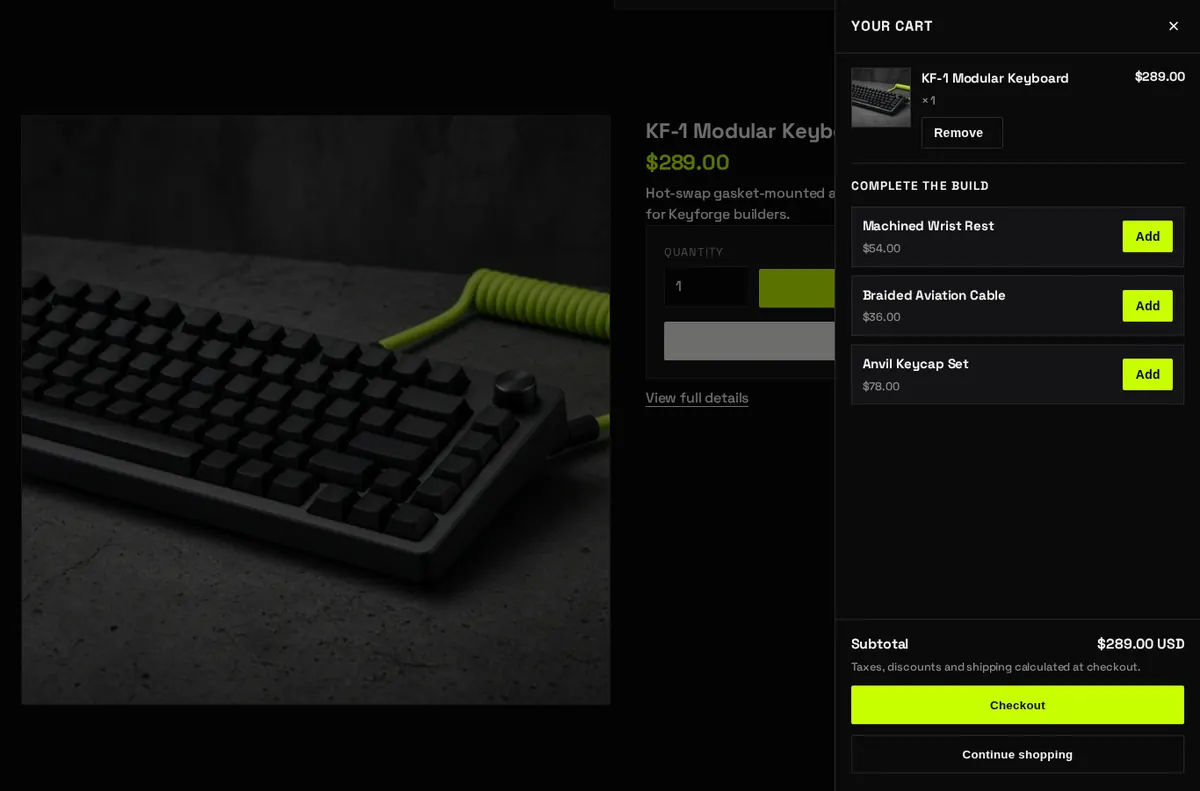
Add-on suggestions (cross-sells)
The drawer suggests up to three products from your add-ons collection, each with a one-tap Add button.
- Create a collection of accessories or extras in Products > Collections.
- In the theme editor, open Theme settings > Brand, choose it as the Add-ons collection, and set the Cart cross-sell heading, for example “Complete your setup”.
Products already in the cart are skipped automatically, and the suggestions hide when there’s nothing left to suggest.
Cart page
The cart page lists items in a table with images, options, quantity controls and line totals, then shows discounts, the subtotal and the checkout button. It’s the page shoppers see when they go to /cart or choose View cart.
Order notes
To let shoppers add instructions to their order (for example “Please leave with a neighbor”), turn on Theme settings > Cart > Enable order notes. The note box appears in both the drawer and the cart page, and the note is saved automatically. You’ll see it on the order in your admin.
Discounts
Plinth shows discounts the moment they apply:
- Product discounts show under the item they apply to, with the discount name and amount saved.
- Order discounts show above the subtotal.
- Automatic discounts (set up in Discounts in your admin) apply in the cart without a code.
Shoppers enter discount codes at checkout. To apply a code before checkout, share a discount link: in Discounts, open the code and use Share to copy its link. When a shopper opens it, the code is added to their cart.
Gift cards and subscriptions in the cart
- Gift cards sent to a recipient show the recipient’s email, name, message and send date on the cart line.
- Subscriptions show the plan name, for example “Delivery every month, save 10%”, on the cart line, and the subscription price.